Managing Your Account & Settings
This guide will go into managing your account and settings
Last updated About 1 year ago
👋To get the most out of this guide, please confirm you've completed these quick steps:
Account Created: You've successfully signed up and have an active organization.
Gone Through Our Quick Start Guide
Active Subscription: Your subscription is all set.
Below is a guide on how to change your Org Settings. The Org Settings page is where you can manage your subscription, add or remove team members, adjust their access levels, and change your organization's name.
Changing Team Member Permissions:
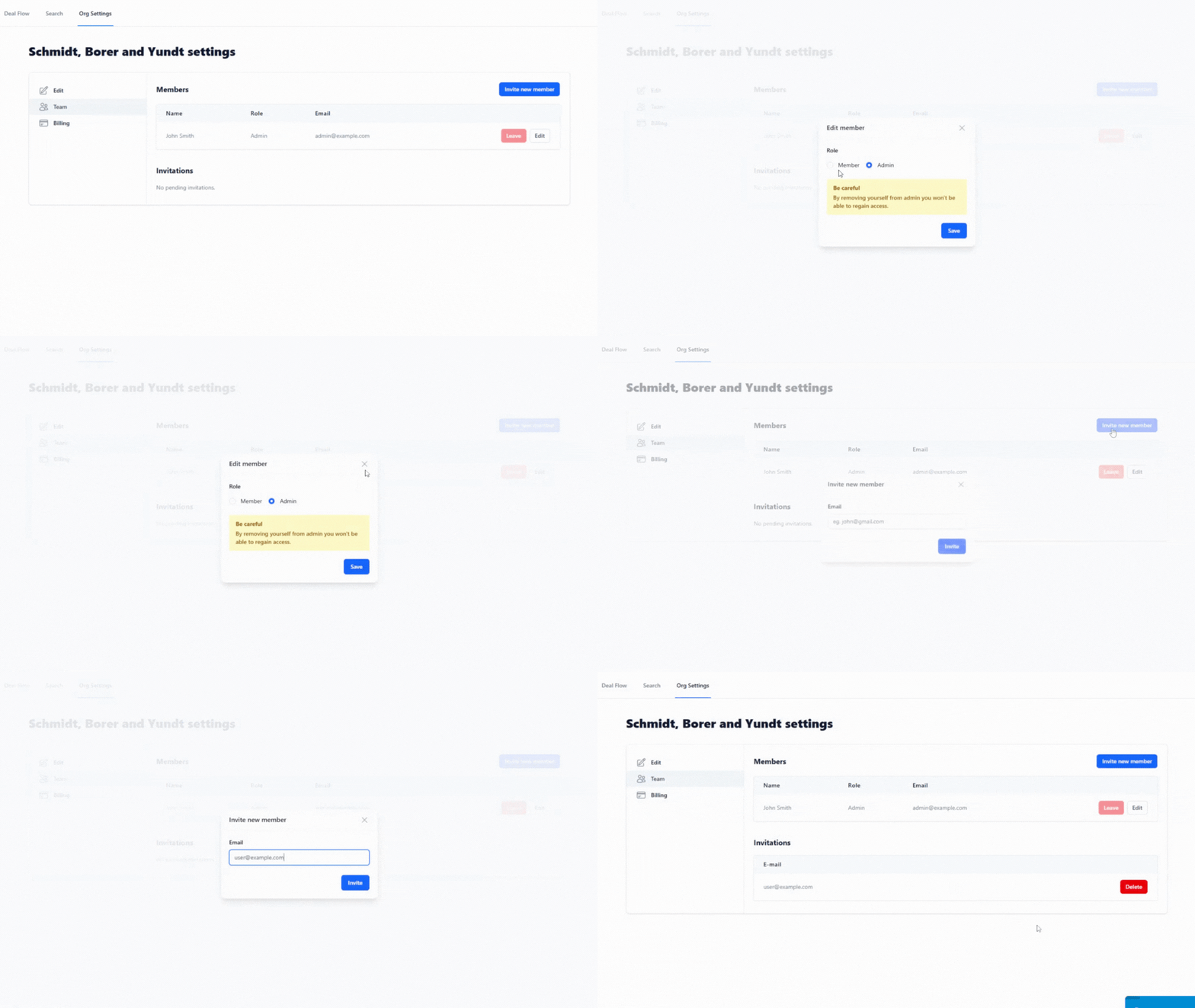
In the Team tab, click on Edit for the user you would like to edit, and then you will see a popup with options to change the role of that team member to either Admin or Member.
After selecting your preference, click Save to exit.
Adding additional team members:
Under the Org Setting page, navigate to the Team tab
Click “Invite New Member”
Enter the email of your new teammate
They will get an email asking to verify their account
After they click verify they are all set
Changing The Name of Your Organization:
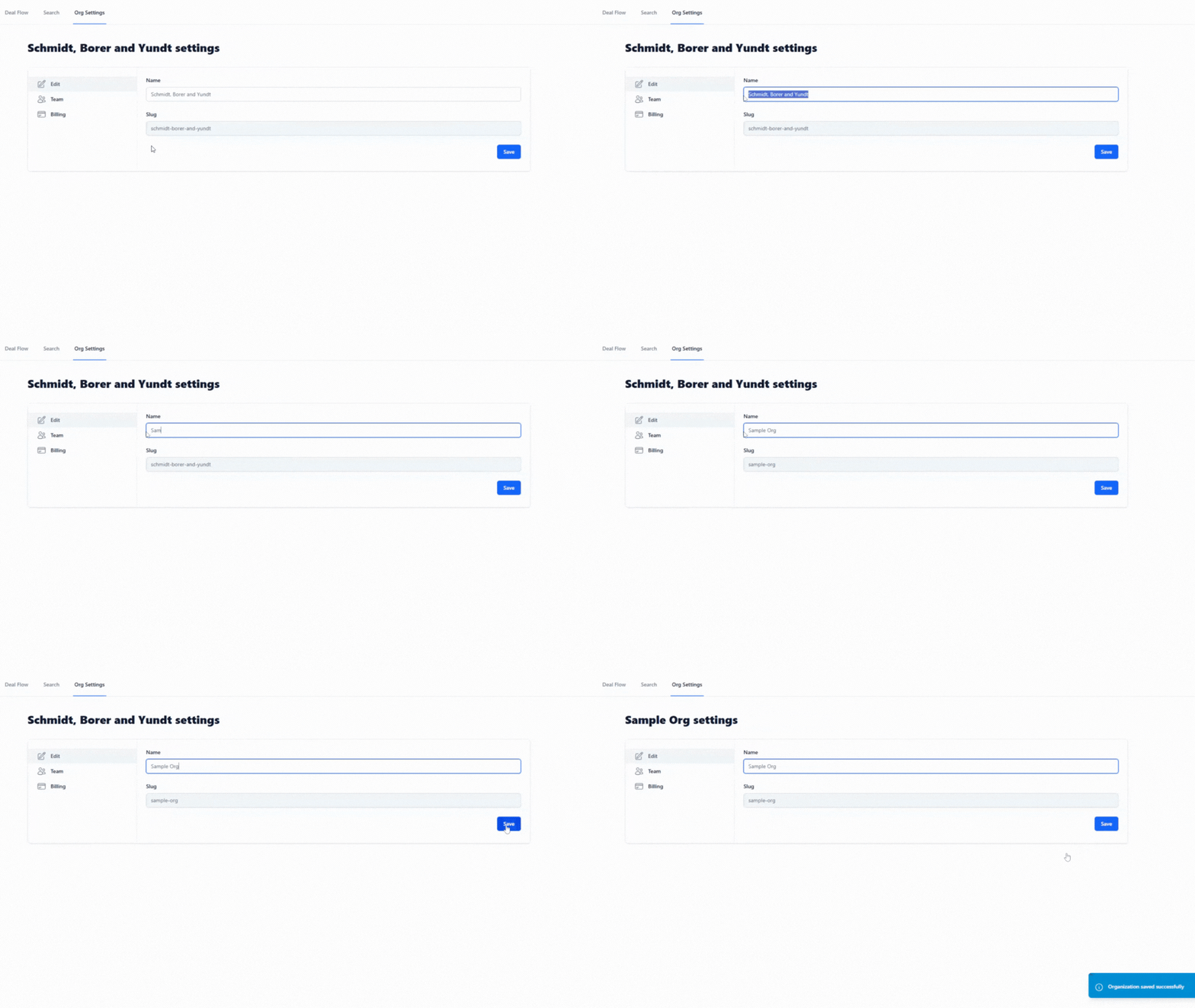
Under the Org Setting page, navigate to the Edit tab
In the Name field you can edit the name of your organization
Click Save.
Cancel or Change Subscriptions:
Navigate to the Billing tab in the Org Settings page
You can either Cancel or Change your subscription.
If you have any questions, our support team is always here to help (support@gofishleads.com).